

Learn how Virtual Link presets and supported Audi Drive Select mode mapping work, including saved profiles, Mode Detection and practical everyday settings.
Virtual Link can assign saved height profiles to supported Audi Drive Select modes, letting you choose your preferred stance through controls you already use. Establish the front and rear heights, save the profiles and map them to the supported modes. Once configured, normal operation does not depend on an open app or a continuously connected phone. The Wi-Fi web interface and Bluetooth mobile app remain available whenever you want to revisit the setup.
Begin with the baseline
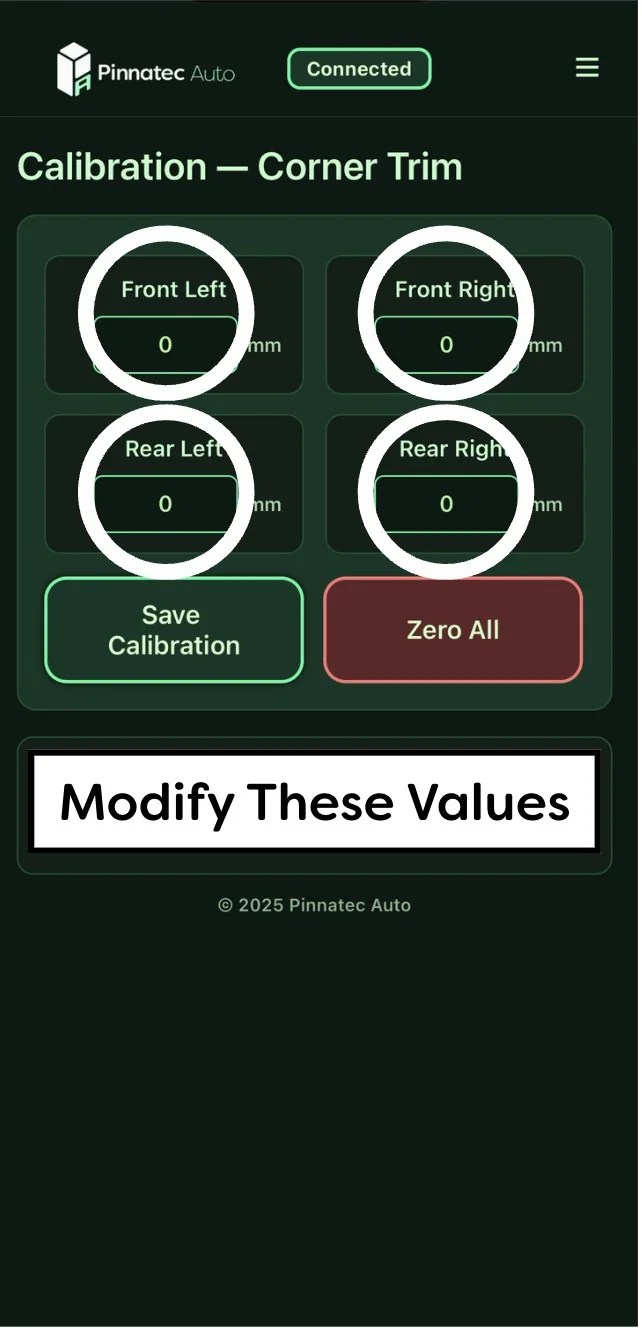
Complete the installation and verify normal operation before creating mode assignments. Follow the Virtual Link setup instructions for the fitted hardware and software. Record the starting corner heights and account for any lowering links or previous coding. Corner-by-corner calibration establishes the reference; it is separate from the front and rear adjustments used in ordinary operating profiles. That distinction helps avoid confusion. Calibration describes the starting relationship between the controller and the vehicle. A profile stores a height choice you want to use again. The existing-links guide explains why the baseline may already differ from factory height.
Create the profiles before assigning modes
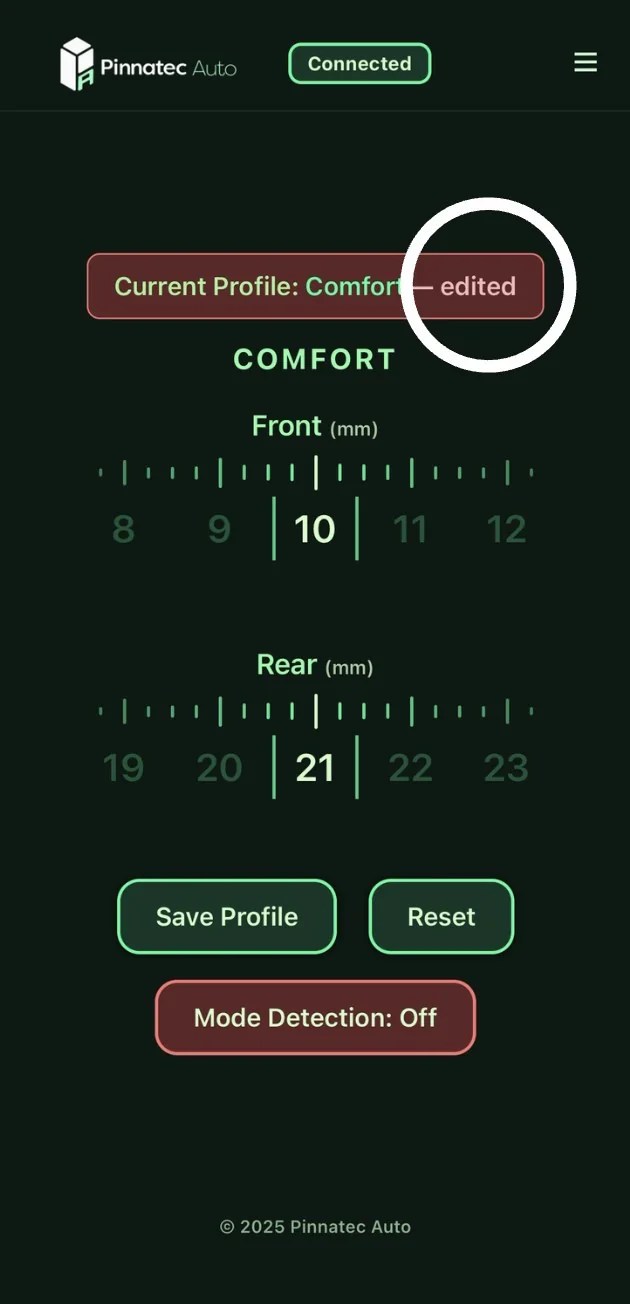
Connect through the web interface or Bluetooth app while setting up the car. Choose a front and rear combination, evaluate the result and save it with a name that makes its purpose clear. An everyday profile should work on the roads and entrances you normally encounter. Another profile might hold a different cruising stance or a low parked position. If you use a separate closed-course setup, give it a distinct name rather than relying on a number you may later forget. Front-to-rear adjustment also lets you refine rake. Save the combination you actually prefer; matching the same numerical change at both axles is not the only way to approach the appearance.
Map, save and enable detection
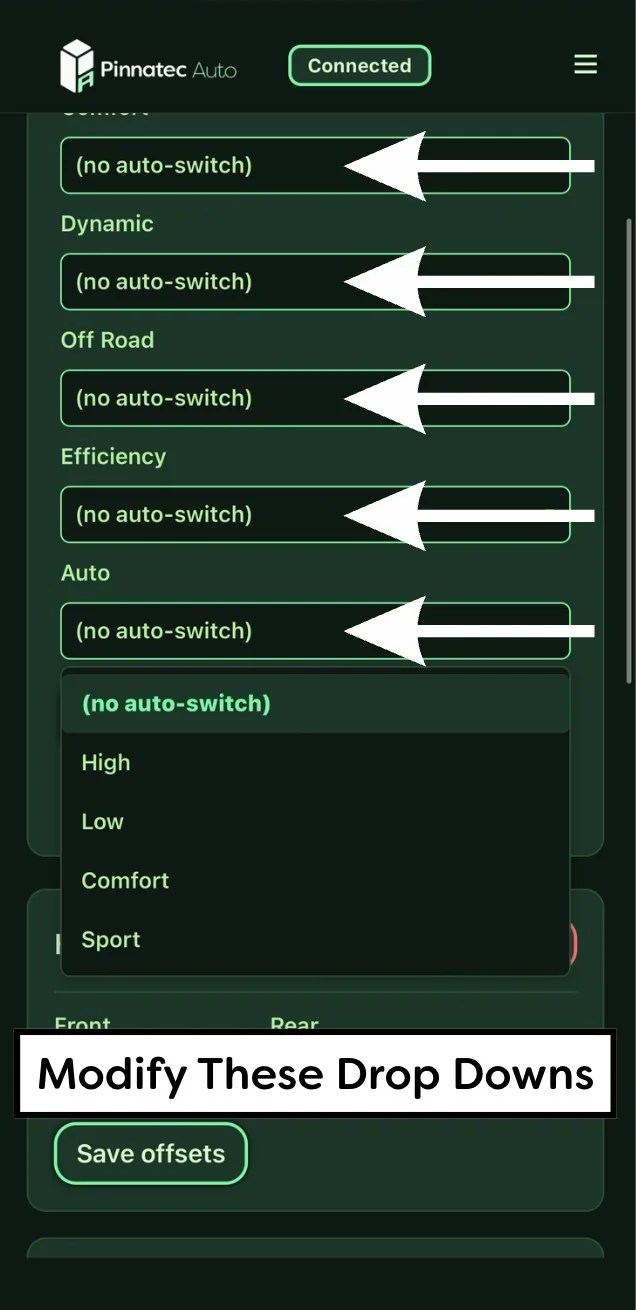
Assign the saved profiles to the supported factory modes, save the mapping and enable Mode Detection as described in the applicable guide. Saving a height profile alone does not complete its assignment to Drive Select.
Check the behavior of each intended assignment. Select the mode, allow the suspension to reach the commanded position and confirm that the expected profile is active. Keep the initial mapping simple enough that its behavior is easy to understand. Choose road-suitable profiles for modes you use in normal driving. A low parked profile can remain separate rather than being assigned to a mode that is frequently selected on the road.
Three parts of a repeatable setup
Pinnatec web-interface examples: corner calibration, live profile controls and factory-mode mapping. Displayed values illustrate the interface only.
Establish the baseline, save front/rear profiles, then assign the profiles to supported modes and enable detection. Saving a profile alone does not create its mode assignment.
Understand Individual and RS-specific behavior
In the Audi behavior described by Pinnatec's app documentation, Individual follows the suspension choice selected inside the factory Individual menu. If that selection is Comfort or Dynamic, the corresponding mapping applies. Individual should not automatically be treated as another independent height slot. Likewise, RS1/RS2 behavior depends on the application. Confirm the supported mapping for the exact vehicle rather than assuming every named factory mode has a separate assignment. The goal is a setup that behaves predictably through the car's own controls. A clear mapping is more useful than a long list of profiles whose differences are hard to remember.
Use the profiles without keeping the app open
After configuration, the saved setup continues operating without a permanent phone connection. You can leave the app closed and use supported factory mode changes to select the configured heights. If wheels, tires or preferences change, return to the interface and refine the profiles. Over-the-air firmware updates also provide a route for software improvements; follow the Pinnatec software guidance for your system. For a car shared with another driver, explain the profile purposes and normal operating choices. A small set of clearly named settings makes the flexibility easier to enjoy. See Virtual Link features and fitment to choose the appropriate platform. If you want help matching a mode to a specific vehicle, contact Pinnatec with the application details.
Ready to choose your setup?
Buy now
